How to Add Form Tools & Custom Bits to Vectric Database
When working with a CNC router, using specialized bits—such as roundover, ogive, or box core bits—allows you to sculpt unique profiles and add a professional finish to your projects. To ensure your 3D simulations are realistic and your toolpaths are mathematically accurate, these tools must be correctly configured in your software.
Depending on what information you have from your bit supplier, there are two main ways to add these specialty tools to Vectric Aspire, VCarve, or Cut2D.
Method 1: Importing a Native Vectric Tool File (.tool / .vtdb)
The most straightforward method is when the tool manufacturer provides native Vectric tool database files directly on their website.

How to Import It:
- Open your Vectric software and open any new or existing project (the tool database cannot be accessed without an active project window).
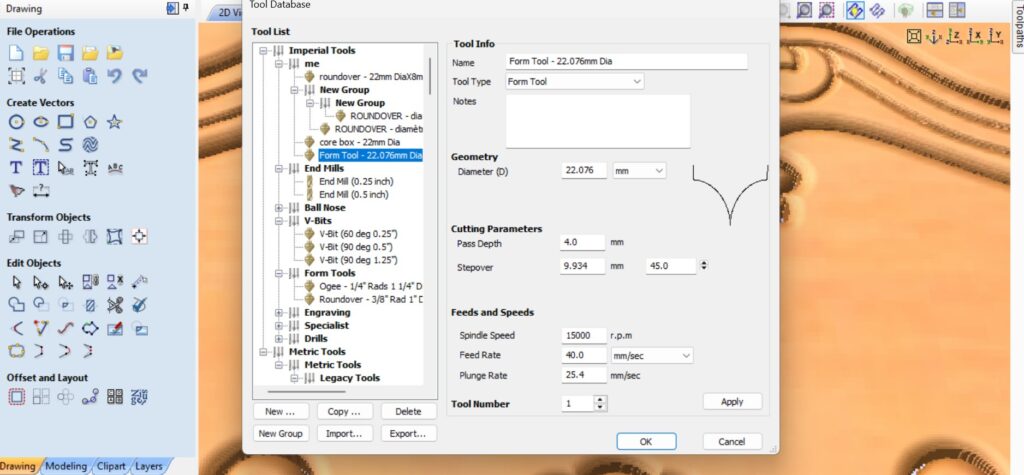
- Go to the top menu and select Toolpaths > Tool Database.
- Click the Import button at the bottom of the tool database window.
- Browse to your downloaded
.toolor.vtdbfile and click Open. The tool, along with its pre-configured cutting parameters, will instantly appear in your database.
⚠️ Important Performance Warning: Some manufacturers offer a massive “all-in-one” database file containing every single bit they make. Avoid importing these massive collective files. Downloading thousands of tools you do not own will severely clutter your software and significantly slow down your database loading times. Instead, look for individual
.toolfiles or use Method 2 for specific bits.
Method 2: Creating a Form Tool from a DXF Profile or Custom Drawing
If the manufacturer does not provide a native .tool file, but they do provide a DXF blueprint—or if you have a generic bit that you need to measure yourself with a caliper—you can use Vectric’s Form Tool feature.

The Golden Rule: The Right-Side Vector Profile
To generate a custom form tool, Vectric requires you to draw or isolate only the right half of the tool’s profile. The software will automatically mirror this profile to create the full 3D bit.
Option A: Extracting the Profile from a DXF File
- Go to File > Import > Import Vectors and select the manufacturer’s DXF file.
- Delete the left side of the tool drawing, along with any text, shank lines, or dimensions.
- Ensure that the remaining right-side profile is a single, continuous open vector (use the Join Vectors tool if it is broken into multiple lines).
Option B: Drawing the Profile Manually (e.g., Box Core or Roundover Bit)
If you don’t have a DXF, you can easily sketch the right-side profile to scale using standard design tools:
- For a Box Core Bit: Draw a circle matching the full diameter of the bit. Use Node Editing (press
N) to cut the vector so you only keep the bottom-right quadrant. Add a vertical line using the Polyline tool if the cutting height extends past the radius, then join them together. - For a Roundover Bit: Draw a rectangle matching the overall width and height of the cutting edge. Use the Internal Radius tool to create the roundover curve. Use Node Editing to delete the top, left, and center lines until only the right-side cutting profile remains.
Saving Your Drawn Vector as a Form Tool:
- Select your clean, open right-side vector profile on your workspace.
- Open the Tool Database.
- Click
+(Add a tool) and select Form Tool from the tool type drop-down menu. - The software will instantly mirror your vector to display the full shape of the bit. Give it a descriptive name, input the number of flutes, and set conservative feed/plunge rates.
Critical Rules & Troubleshooting
- Watch Out for Undercuts: The Vectric tool database cannot save tools that create an undercut (such as dovetail bits, T-slot bits, or keyhole cutters). The profile vector must move progressively outward or straight up; it cannot loop back inward.
- Be Conservative with Pass Depths: When manually setting up a new form tool, err on the side of caution. For your initial runs, set a shallow pass depth (e.g., half of the tool’s radius). It is much safer to let the machine complete multiple light passes while you dial in your settings than to push a brand-new specialty bit too hard and break it on the first cut.